How to Create a Gmail Account Without a Phone Number
Google often lets you skip the phone step when you open a Gmail account. See when the skip appears, what to do when it does not, and how to stay secure.
By the DuoTalk team · Published 2026-10-29 · Updated 2026-11-11
You can often create a Gmail account without a phone number, because Google treats the phone number as optional during sign-up and shows a Skip button at that step. The catch is that Google does not show it to everyone. When its systems judge a sign-up as higher risk, Google asks you to verify a phone number before it will create the account. This guide explains how to create a Gmail account without a phone number on Android, iPhone and a computer, what to do honestly when Google insists on a number, and how to secure the account so you never get locked out.
The short answer: Yes, in many cases. Start sign-up from your phone's account settings or the Gmail app, choose "For my personal use", and tap Skip when Google asks for a phone number, then add a recovery email. If no Skip button appears, Google requires verification for that sign-up, and you need a number you can receive (and ideally keep) codes on.
Does Gmail require a phone number?
No, not always. Google's "Create a Google Account" help page lists adding a phone number as an optional step: after you choose a username and password, you can "add and verify a phone number", then continue. If you skip it, Google still creates the account.
But Google also reserves the right to ask. Its "Verify your account" help page says that Google sometimes requires phone verification before you create an account or sign in, to "help protect you and stop spammers". That is the honest picture: optional by default, required when Google's risk checks say so.
Why Google asks for your phone number
Google uses a phone number for four jobs:
- Anti-abuse. A phone number is harder to fake in bulk than an email address, so it slows down people creating thousands of spam accounts.
- Account recovery. A recovery phone lets Google text you a code if you forget your password. Google allows one recovery phone per account.
- 2-Step Verification. Text or call codes are one of several second-step options.
- Connected services. Some Google services use your number, for example for contact discovery or Google Pay.
What decides whether you see the Skip button
Google does not publish its criteria, so nobody outside Google can give you a guaranteed method. From Google's own wording and common user reports, these signals make a phone request more likely:
| Signal | Why it matters |
|---|---|
| Several accounts created recently from the same device or network | Looks like bulk sign-up, the main thing Google is trying to stop |
| Shared, public or VPN networks | Many people sign up from the same IP address |
| A brand-new device or browser with no history | Fewer trust signals |
| Signing up through a desktop browser rather than phone settings | Users often report the skip is more common on mobile |
| Very fast form filling or repeated failed attempts | Looks automated |
None of these are tricks to "get around" Google. They simply explain why two people following the same steps see different screens.
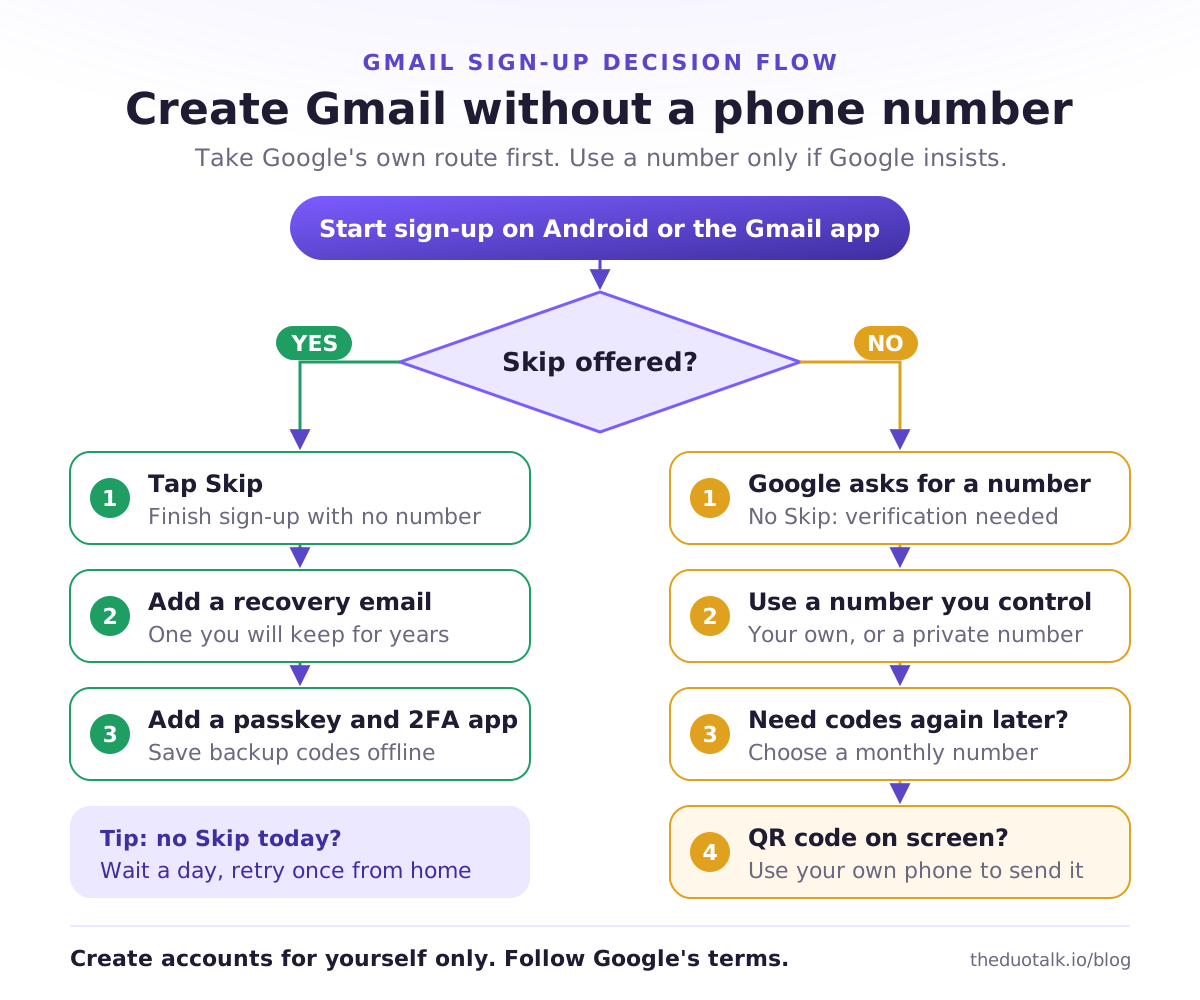
How to create a Gmail account without a phone number on Android
Android is the most reliable place to see the Skip option, because you sign up from the phone's own account settings. The steps below match current Android versions; menu names vary slightly by manufacturer.
- Open Settings.
- Tap Google, then Manage your Google Account if you are signed in, or go to Passwords & accounts (on some phones Accounts or Users & accounts).
- Tap Add account, then Google.
- Tap Create account at the bottom left, then choose For my personal use.
- Enter your first and last name, then your birthday and gender. Use your real birthday: Google requires a minimum age (13 in most countries, higher in some), and a birthday under that age changes the account type.
- Choose a suggested Gmail address or tap Create your own Gmail address.
- Create a strong password that you do not use anywhere else.
- When Google asks Add phone number? or similar, tap Skip. If you see Yes, I'm in for phone features, you can decline those too.
- On the recovery email screen, add an email address you control. This is your safety net when you have no phone number.
- Review your account info, read the terms, and tap I agree.
The new account now appears on your phone. Go straight to the security section below and add a passkey.
If you already use another Google account on the phone
That is fine. Android supports several Google accounts. Adding a second account through Add account does not move your existing number onto it. Each account has its own recovery settings.
On iPhone and on a computer
You can follow the same idea on iPhone and on a computer: start sign-up, fill in your details, and look for Skip at the phone step. The flows differ slightly.
On iPhone or iPad
The Gmail app is the simplest route on iOS.
- Install and open the Gmail app.
- Tap your profile picture (or Sign in on first launch), then Add another account.
- Choose Google, then tap Create account and For my personal use.
- Enter your name, birthday, gender, Gmail address and password.
- At the phone number step, tap Skip if it appears.
- Add a recovery email, review, and tap I agree.
You can also start from iOS Settings: open Settings, then Apps, Mail, Mail Accounts (on older iOS versions Mail, Accounts), tap Add Account, Google, then Create account.
On a computer
Google's help page describes this flow for computers.
- Go to the Google Account sign-in page (accounts.google.com) and click Create account.
- Choose For my personal use.
- Enter your name, birthday and gender.
- Pick a Gmail address or create your own.
- Enter and confirm a password, then click Next.
- If Google offers the optional phone step, click Skip.
- Add a recovery email, review, and agree to the terms.
If you are signed in to another Google account in that browser, use a private window or add a new browser profile so the new account starts clean.
Desktop versus mobile at a glance
| Device and route | Phone step | Notes |
|---|---|---|
| Android, Settings, Add account | Often skippable | Best first choice |
| iPhone, Gmail app | Often skippable | Easy if you already use the Gmail app |
| iPhone, Settings, Mail | Often skippable | Same Google flow inside iOS |
| Computer, accounts.google.com | Optional on paper, more often required in practice | Try mobile if you hit a wall |
A Google Account without Gmail
If you only need a Google Account (for YouTube, Google Docs or Play), you do not need a Gmail address at all. On the sign-up page choose Use your existing email, enter an address you already have, and confirm the code Google emails to it. Google may still ask for phone verification in some cases, but this route avoids creating a new mailbox.
If Google insists on a phone number
If there is no Skip button and Google says something like Verify some info or Confirm you're not a robot, that sign-up needs phone verification. You cannot click past it, and retrying many times usually makes things worse. You have four honest options.
Option 1: wait and try from your own phone
Google's checks look at the device and network. Waiting a day, then signing up from your own phone's settings on your home Wi-Fi (not a VPN or public network), is the simplest fix. Do not create several accounts in a row while testing.
Option 2: use your number, then remove it
You can verify with your personal number and remove it afterwards in Google Account, Personal info, Phone, by selecting the number and choosing Delete or Remove number. Google's help page explains that the number is used for verification, recovery and some connected services, and that you control who sees it in About me. This option keeps your number out of the finished account's recovery settings, but Google did see it once.
Option 3: use a number you control
If you do not want your personal number involved at all, use a separate number that you control and that only you can read: a second SIM, an eSIM, or a private virtual number. Google's own help page suggests using a different number (for example, a family member's) when one number has been used too many times. Do not use public "free SMS" websites: anyone can read the code, and those numbers are usually rejected because they have been used for many accounts already.
Pick the number by how long you need it:
| Number | Use it if | Watch out for |
|---|---|---|
| Short-term number | You only need one code to finish sign-up and will not add it as a recovery phone | You cannot receive codes on it later |
| Monthly (dedicated) number | You might need another code soon, for example a sign-in on a new device | Do not leave it as your only recovery method once the period ends |
| Your own second SIM or eSIM | You want a long-term recovery phone that is not your main number | Ongoing carrier cost |
Our guide to a temporary phone number for verification explains the short-term option in more detail, and the second phone number guide compares long-term choices. If you need a number from a specific country, see our US phone number for verification guide.
Option 4: when Google shows a QR code
In February 2025, Google told Forbes it wants to "move away from sending SMS messages for authentication" when people create new Gmail accounts, and 9to5Google reported that a QR code would replace the 6-digit SMS code. Google's 2-Step Verification page also notes that "in some cases" you scan a QR code with your phone to verify your number. User reports from 2026 describe the scan opening a pre-filled text message that your phone sends to Google.
If you see this screen, you need a smartphone with a camera and a SIM or eSIM that can send a text. A number that can only receive SMS online cannot complete this step. That is by design, and there is no legitimate way around it. Use your own phone, then remove the number afterwards (Option 2) if you prefer.
Error messages and what they mean
| Message | Meaning | What to do |
|---|---|---|
| This phone number cannot be used for verification | Google limits how many accounts one number can create | Use a different number |
| This phone number has been used too many times for verification | The number hit Google's verification limit | Use a different number, ideally one only you have used |
| No text message arrives | Delays in busy areas or carrier issues, or the number range is not accepted | Wait a few minutes, try the voice call option, then a different number |
| Sorry, we could not create your Google Account | Google blocked this sign-up attempt | Stop, wait at least a day, try again from your own device and network |
Google does not publish the exact limits per number. Numbers you see quoted online are guesses.
Secure the account without a personal number
An account with no phone number is safe, as long as you replace the phone with stronger methods. Do these five things on the day you create the account. A recovery email alone is not enough.
- Add and confirm a recovery email. Go to Google Account, Security & sign-in, Recovery email. Use an address you will keep for years, protected by its own strong password and two-step verification.
- Create a passkey. Go to myaccount.google.com/signinoptions/passkeys and tap Create a passkey. You confirm it with your fingerprint, face or screen lock. Google says passkeys need Android 9, iOS 16, Windows 10, macOS Ventura or later, and a new passkey can take up to 7 days to become usable for sign-in.
- Turn on 2-Step Verification with an authenticator app or security key. In Security & sign-in, choose 2-Step Verification. Since May 2024, Google lets you add an authenticator app or a security key without first adding a phone number.
- Save backup codes. Google gives you a set of 8-digit backup codes. Print or download them and store them somewhere safe and offline.
- Sign in on a second device you own. A trusted, signed-in device can approve Google prompts and helps a lot during account recovery.
| Method | Needs a phone number | Works offline | Phishing-resistant |
|---|---|---|---|
| Passkey | No | Yes (on the device) | Yes |
| Security key | No | Yes | Yes |
| Authenticator app | No | Yes | Partly |
| Google prompt on a signed-in phone | No | No | Partly |
| Backup codes | No | Yes | No, store them carefully |
| SMS or voice code | Yes | No | No |
| Recovery email | No | No | Depends on that email's security |
A worked example
Priya wants a Gmail address for a small online shop, separate from her personal account and without her personal number. She creates it from Settings, Add account on her Android phone, taps Skip at the phone step, and adds her personal email as the recovery address. She then adds a passkey on her phone and laptop, sets up an authenticator app, and downloads backup codes into her password manager. Six months later she signs in on a new laptop: the passkey on her phone approves it, and no phone number is ever involved.
Gmail recovery phone number: should you add one later?
A recovery phone is still the fastest way back in if you forget your password. If you want one but not your personal number, use a number you will keep for years, such as a second SIM or eSIM. Avoid adding a short-term or rental number as your recovery phone: once it stops working, it gives you no help and someone else could receive SMS on it later. Google also notes that a newly added number can take up to a week before it can verify sensitive actions such as a password change.
Mistakes that trigger extra verification
These are the most common reasons Google asks for a number, or locks a new account soon after creation.
- Creating several accounts in a short time. Google limits accounts per number and watches for bulk sign-ups from one device or network. Create the one account you need.
- Signing up over a VPN, proxy or public Wi-Fi. Shared IP addresses look like many people signing up at once.
- Using a public free-SMS number. These numbers have usually hit Google's limit already, and anyone can see your code.
- Retrying again and again. Each failed attempt adds risk signals. Stop and come back the next day.
- Entering a birthday under the minimum age. Google may disable the account until age is verified.
- No activity after creation. A brand-new account that signs in from three countries in a week looks hijacked. Use it normally from your usual devices.
- Skipping the recovery email. Without a phone or recovery email, Google has very little to verify you with if anything goes wrong.
Questions people also ask
Can I create a Gmail account without a phone number?
Yes, often. Google's help page lists phone verification as an optional step when you create an account, and many sign-ups show a Skip button at the phone screen, especially from Android Settings or the Gmail app. It is not guaranteed: if Google judges the sign-up risky, it requires a number and hides Skip. Add a recovery email and a passkey right away, so the account stays recoverable without a phone.
Why does Google ask for my phone number?
Google asks for a phone number mainly to stop automated and spam sign-ups, because numbers are harder to fake in bulk than email addresses. Its "Verify your account" page says verification helps "protect you and stop spammers". A number is also used as a recovery phone for password resets, for text-message 2-Step Verification codes, and by some connected services. Google states it does not sell personal information, including phone numbers.
Can I remove my phone number from my Google account?
Yes. Open your Google Account, go to Personal info, then Phone, select the number and choose Delete or Remove number. Check Security & sign-in too, because the same number may be listed as your recovery phone or a 2-Step Verification method, and each must be removed separately. Before removing it, add a passkey, an authenticator app and backup codes, so you still have a way to sign in.
How do I recover a Google account without a phone number?
Use Google's account recovery page and answer as many questions as you can. Google recommends using a device and browser you usually sign in with, from a familiar location such as home, and entering your most recent password, even as a guess. A code may be sent to your recovery email. If Google says it "couldn't verify this account belongs to you," you can try again later.
Can I use a virtual number to verify Gmail?
Sometimes. Google does not publish which number types it accepts, and numbers that were used for many accounts get the "used too many times" error. A private virtual number that only you can read has a better chance than a public free-SMS page. If Google shows a QR code that asks your phone to send a text, a receive-only virtual number cannot complete it; use your own phone instead.
Why is there no Skip button when I create a Gmail account?
Google hides Skip when its risk checks require phone verification for that sign-up. Common triggers are several recent sign-ups from the same device or network, VPN or public Wi-Fi, a new browser with no history, and repeated failed attempts. Google does not publish its rules. Waiting a day and signing up once from Android Settings or the Gmail app, on your home network, is the most reliable legitimate approach.
Get a number for Google verification on DuoTalk
If Google insists on a number and you do not want to use your personal one, DuoTalk (theduotalk.io) is a web app that gives you a virtual phone number to receive SMS online in a private inbox. Open the Numbers page, choose Google/Gmail, and check live stock and prices by country. Pick a short-term temporary phone number for a single sign-up code, or a monthly number if you expect to need another code during the next 30 days. A short-term number works for 60 minutes after purchase and stays open 7 more minutes after the first code; if no code arrives you can extend it once for free, and if it still fails you report it and an approved refund goes back to your DuoTalk balance. Top-ups are in crypto (USDT on TRC20 or BEP20, TRX, LTC, BTC or ETH). Be realistic: receiving a code never guarantees Google will accept the number, and the QR-code flow needs your own phone. Whatever you use, finish by adding a passkey, an authenticator app, backup codes and a recovery email.
Sources
- Google Account Help: Create a Google Account
- Google Account Help: Verify your account (phone verification and error messages)
- Google Account Help: Manage how your phone number is used
- Google Account Help: Turn on 2-Step Verification
- Google Account Help: Sign in with a passkey
- Google Account Help: Tips to complete account recovery steps
- 9to5Google, 24 February 2025: Google to replace SMS codes with QR codes for new Gmail accounts
- Google Workspace Updates, 6 May 2024: Updates for configuring 2-Step Verification (personal accounts included)
Last reviewed: October 2026