Not Receiving Verification Codes? 10 Fixes That Work
Not receiving verification codes? Work through 10 fixes in the right order: phone filters, signal, carrier blocks, roaming, rate limits and number type.
By the DuoTalk team · Published 2026-10-15 · Updated 2026-11-11
If you are not receiving verification codes by text, the cause is almost always one of four things: your phone hid the message, your carrier blocked or could not deliver it, the service refused to send it, or the number itself is not accepted. Most cases are fixed in under five minutes by checking your message filters, waiting a full two minutes, and requesting the code only once more. This guide gives you 10 fixes in the order that solves problems fastest, for any phone, any carrier and any service, including codes you need while travelling and codes sent to a virtual number.
The short answer: Check your spam, blocked and "unknown senders" folders first, confirm you have mobile signal (SMS does not arrive over Wi-Fi alone on most phones), and make sure the number and country code you typed are correct. Then wait two minutes and request a new code once. If texts from people arrive but codes do not, ask your carrier to allow short-code messages; if the service shows an error, the problem is on its side.
The 10 fixes at a glance
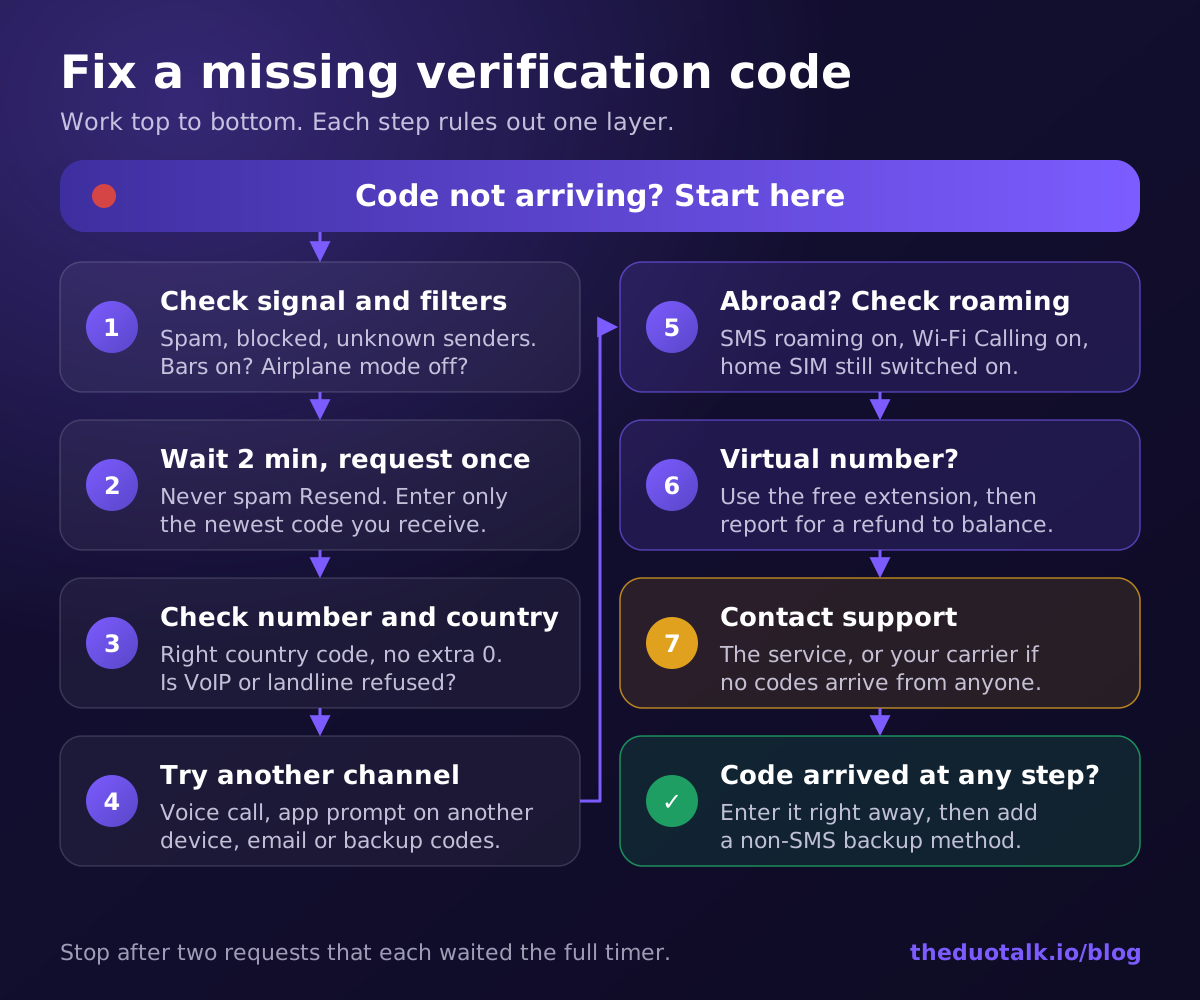
Work through these in order. Each one rules out a layer (phone, carrier, service, number), so you never waste time on the wrong fix.
- Check filtered folders. Look in spam, blocked, "unknown senders" and promotions folders before anything else.
- Confirm signal and airplane mode. You need a cellular connection, not just Wi-Fi, for a regular SMS.
- Wait two minutes, then request once. Never tap "Resend" repeatedly; enter only the newest code.
- Check the number and country code. Remove leading zeros, pick the right country in the dropdown, and make sure the line is the one you think it is.
- Restart the phone and check the SMS app. A restart re-registers your line; also check your default SMS app and which SIM receives texts on dual-SIM phones.
- Free up storage and unblock senders. A full phone or a blocked sender can silently drop messages.
- Ask your carrier about short codes. Content blocks, prepaid limits and parental controls often stop automated texts.
- Fix roaming when abroad. Enable roaming for SMS, turn on Wi-Fi Calling if your carrier supports it, or switch to app-based codes before you travel.
- Switch channel. Choose "Call me", the app prompt on a logged-in device, email, an authenticator app or backup codes.
- Contact the service (or your number provider) with specifics. Give the exact error, time, number type and country.
Why verification codes do not arrive
Verification codes fail at one of four points: the service does not send the code, the SMS network does not deliver it, your phone receives it but hides it, or the number is the wrong type for that service. Identifying the point of failure tells you which fix to use.
A verification code (also called an OTP, or one-time password) travels a long chain. The service asks an SMS gateway to send it, the gateway hands it to carriers, the carrier delivers it to your SIM, and your messaging app decides where to file it. A failure anywhere looks identical from your side: nothing shows up.
| Where it fails | Typical clues | Most likely causes |
|---|---|---|
| The service never sends it | An error on screen, "Too many attempts", "Number not supported", or no "Code sent" message | Rate limits, number type refused, wrong country code, account risk checks |
| The carrier does not deliver it | "Code sent" shows, but nothing arrives, and other services fail too | Short-code blocking, suspended line, roaming, no signal, recently moved number |
| Your phone hides it | Friends' texts arrive, codes sometimes do not | Spam filters, unknown-sender screening, blocked senders, wrong SMS app or SIM |
| The code arrives but fails | "Invalid code" or "Code expired" | Old code used, code typed too late, several codes requested |
A useful test: ask a friend to text you, and request a code from a different, unrelated service. If the friend's text arrives but neither code does, look at short codes and carrier blocks. If nothing arrives at all, the problem is your line or signal. If only one service fails, the problem is with that service.
Quick fixes on your phone
Most missing codes are on the phone itself: filtered into a hidden folder, blocked, or sent to the wrong SIM. Check these settings before you request another code.
On iPhone
- Unknown senders. In iOS 26, Apple calls this setting Screen Unknown Senders. Turn it on or off in Settings > Apps > Messages > Unknown Senders, or from the Filters button in Messages > Manage Filtering. Apple notes it is off by default in iOS 26, but if you had Filter Unknown Senders on in iOS 18, it is turned on after upgrading. Open the Unknown Senders filter, find the code, and tap Mark as Known for senders you trust.
- Spam and junk. Check the Spam or Junk filter in the same Filters list, along with any third-party SMS filter apps you installed.
- Blocked contacts. Settings > Apps > Phone (or Messages) > Blocked Contacts. Remove any short code or brand you blocked by mistake.
- Focus and Do Not Disturb. A Focus mode hides the notification but does not stop the message. Open Messages and look; the code may already be there.
- Signal. Apple's support page states that SMS needs a cellular connection; iMessage and RCS can use Wi-Fi, but verification texts are usually plain SMS.
On Android (Google Messages)
- Spam & blocked folder. Tap your profile icon (top right) > Spam & blocked. If you find the code, open the conversation and tap Not spam or Unblock.
- Spam protection level. Messages settings > Protection & Safety > Spam and scam protection. Google lets you choose between enhanced, standard and no protection; a stricter setting can catch legitimate codes.
- Default SMS app. If you installed another texting app, codes may land there. Check Settings > Apps > Default apps > SMS app.
- Dual SIM. On phones with two SIMs or an eSIM, check which line is set for SMS and which line you typed into the form.
- Storage. If storage is almost full, some phones stop accepting new messages. Delete large files or old conversations, then restart.
On any phone
- Toggle airplane mode on for ten seconds, then off, to re-register on the network.
- Restart the phone if a toggle does not help.
- Update the operating system and your messaging app; carrier settings updates often arrive with them.
- Text your own number. If your own text does not arrive, the issue is your line, not the service.
- If you use an authenticator app instead of SMS and the code is "invalid", set your phone's date and time to automatic. Authenticator codes are time-based, so a clock that is a minute off produces wrong codes. SMS codes do not depend on your clock.
Carrier and roaming problems (including abroad)
If texts from people arrive but verification codes do not, your carrier is the most likely cause. Automated codes are often sent from short codes (5 or 6 digit numbers) or alphanumeric sender names, and carriers can block both while ordinary texts still get through.
Short-code and content blocks
Many carriers let account holders block short-code or "premium" messages, and some prepaid plans, child lines, business lines and budget plans have these blocks switched on by default. The messaging platform Twilio, for example, lists "the recipient's wireless plan may not support short code messaging" as a common reason its messages fail. To fix it:
- Call your carrier or open its app and ask: "Is short-code or premium messaging blocked on my line?"
- Ask them to remove any content block or "block texts from websites/apps" setting.
- Restart your phone after the change; some carriers take an hour or two to update the line.
Account and line problems
- Suspended or unpaid service. A line suspended for billing may still show signal but will not receive SMS.
- Recently moved number. After switching carriers, moving to eSIM or getting a replacement SIM, it can take time for routing to update. Codes may go missing while the move completes.
- SIM protection features. Some carriers delay or block codes for a period after a SIM change as an anti-fraud measure. Ask whether one is active.
Getting codes while abroad
Codes sent to your home number only arrive if your home line can reach a network abroad. Before or during travel:
- Keep your home SIM active. If you added a travel eSIM for data, leave your home line switched on for calls and texts. A data-only eSIM has no phone number of its own for your existing accounts.
- Enable roaming on the account, not just the phone. Ask your carrier whether your plan allows SMS while roaming in that country. You can keep data roaming off on the home line to avoid charges and still receive SMS on many plans.
- Turn on Wi-Fi Calling. On carriers that support it, Wi-Fi Calling lets your phone receive SMS over Wi-Fi when there is no partner network.
- Expect short codes to be patchy. Even with roaming, some short-code senders do not reach phones abroad. Ask the service for a voice call or use app-based codes.
- Set up backups before you leave. Add an authenticator app, passkeys or backup codes to important accounts so you are never dependent on SMS on a trip.
Problems on the service's side
When the service shows an error, or when only one service fails, the problem is on the sender's side. Services limit how often they send codes, refuse certain number types, and block SMS when a sign-in looks unusual.
Rate limits and repeated requests
Every service caps how many codes it sends to one number, device or network. After several requests you may see "Too many attempts, try again later", or worse, the code is simply not sent with no message. Lockouts can last from a few minutes to many hours. WhatsApp's help center, for example, says the code can take up to 10 minutes and warns that guessing codes locks you out for a period of time. The fix is patience: stop, wait the time shown, then request exactly once.
Only the newest code works
Google's Account Help says that if you requested several codes, only the newest one works. Most services behave the same way. If you tapped "Resend" three times, enter the last code you received, not the first.
Wrong format or country
- Use international format. WhatsApp tells users to remove leading zeros or special calling codes, because they cause registration errors.
- Pick the country in the dropdown first, then type the national number. A UK number entered under the US code can never receive anything.
Number type refused
Many services check the number type before they send a code. WhatsApp's help center lists VoIP, landline, toll-free, premium-rate, universal access (UAN), shared-cost and personal numbers as types it cannot register. OpenAI's help center says it does not support landline, Google Voice or other VoIP numbers for phone verification. If your number is one of these, no amount of waiting helps. Our guide to non-VoIP numbers explains how these checks work.
Risk checks and unusual sign-ins
Google states that if it notices something different about how you sign in, such as your location, you might not be able to get a code by text message. Other services do the same when a VPN, a new device or a new country looks risky. Turn off the VPN, try from a device you have used before, or use another verification method.
The code went somewhere else
Some services send the code to another channel by default:
- Google may send a Google prompt to your signed-in phone instead of a text.
- Telegram can send the login code as a message in the Telegram app on your other logged-in devices; check there before waiting for SMS.
- Apple, Microsoft and many banks may show the code on a trusted device or in their app.
- Email fallbacks may be offered after a failed SMS.
Outages
SMS gateways and services have outages. If many people report the same problem at the same time on the service's status page or social channels, wait and try later rather than changing your settings.
Not receiving verification codes on a virtual number
If you are not receiving verification codes on a virtual number, the usual causes are the service refusing that number type, a wrong country selection, rate limits on the service's side, or a route that is slow at that moment. Wait, request once, and if nothing arrives, use your provider's extension and refund options instead of buying number after number.
A virtual number is a phone number you read online instead of on a SIM. It is useful for keeping your personal number private, for travel and for testing. If you are new to them, our guide to the temporary phone number for verification explains the trade-offs, and our US phone number for verification guide covers US numbers specifically.
A short checklist for any virtual number
- Check the service accepts it. If the service says "number not supported" before sending, the number type is the problem, not delivery.
- Match the country. Choose the number's country in the sign-up dropdown and paste the national number without an extra zero.
- Request once and wait two minutes. Virtual number routes are subject to the same rate limits as SIM numbers.
- Try the service's voice option only if your provider supports calls. Most numbers from an SMS verification service receive text only.
- Change the country or route, not the frequency. If a service consistently refuses one country, another country listed for that service is more effective than repeated retries.
On DuoTalk specifically
DuoTalk (theduotalk.io) is a web app that gives you a virtual phone number to receive SMS online in a private inbox. A short-term number works for 60 minutes after purchase, and once the first code arrives it stays open 7 more minutes. If no code arrives, you can extend once for free for another hour on the same number; if it still fails, report it and an approved refund goes back to your DuoTalk balance. The full DuoTalk step-by-step checklist is in the help article No SMS arrived? What now?. Codes usually arrive within seconds on tested routes, but receiving a code never guarantees the service will accept the number, because each service sets its own rules.
Troubleshooting table: symptom, cause, fix
Find the row that matches what you see, then apply the fix. This table covers the most common situations behind "can't receive verification code" searches.
| What you see | Most likely cause | Fix |
|---|---|---|
| Nothing at all, from anyone | No signal, airplane mode, suspended line | Check bars, toggle airplane mode, text your own number, call carrier |
| Friends' texts arrive, codes never do | Short-code or content block on your plan | Ask carrier to allow short-code and premium messages |
| Codes arrive sometimes | Spam or unknown-sender filtering | Check filtered folders, mark sender as known or not spam |
| "Code sent" but nothing for one service only | Service-side delay, rate limit or risk check | Wait 2-10 minutes, request once, try another channel |
| "Too many attempts" | Rate limit | Stop and wait the time shown, then request once |
| "Invalid code" | Older code entered, or code expired | Request once, enter only the newest code quickly |
| "Number not supported" or "can't be used" | VoIP, landline or toll-free number refused | Use a mobile or non-VoIP number accepted by that service |
| Works at home, fails abroad | Roaming off, data-only eSIM, short codes not routed | Enable SMS roaming, Wi-Fi Calling, or app-based codes |
| Code arrives on the wrong device | Dual SIM or code sent to another app session | Check SMS SIM setting; check the app on other devices |
| Authenticator code rejected | Phone clock out of sync | Set date and time to automatic |
| Nothing on a virtual number | Number type refused, route slow, wrong country | Wait, request once, extend, then report for refund to balance |
When to stop retrying and contact support
Stop retrying after two requests that each waited the full timer. More attempts only extend lockouts. At that point, switch channel or contact the right support team with specific details.
Who to contact
- Your carrier if no codes arrive from any service, or if normal texts arrive but short codes do not. Apple's own support page tells users to contact their carrier for SMS problems.
- The service if only that service fails, or if you see an error such as "number not supported". Use its help center's verification or account recovery form.
- Your virtual number provider if you used one and the code did not arrive within the window. On DuoTalk, use the free extension and then report the number from your order.
What to include in your message
- The exact error text, copied word for word.
- The date, time and time zone of each attempt.
- The number's country and type (mobile SIM, eSIM, VoIP, virtual).
- Whether you are abroad and on which network.
- What you already tried, in order.
Use your backup methods
If you set up an authenticator app, a passkey, a security key, backup codes or a recovery email, use them now. Google's help page lists backup phones, backup codes, security keys, passkeys and trusted devices as alternatives when SMS fails, and notes that recovery without them can take 3 to 5 business days. After you are back in, add at least one non-SMS method so the next lost code is a minor issue.
Questions people also ask
Why am I not receiving verification codes?
The most common reasons are message filtering, carrier short-code blocks, rate limits and a refused number type. Check the spam, blocked and unknown-senders folders first, since many codes are delivered but hidden. Then confirm you have cellular signal, the correct country code, and no "Too many attempts" warning. If friends' texts arrive but no codes do, ask your carrier to allow short-code messages on your line.
Why am I getting regular texts but not verification codes?
Verification codes usually come from short codes (5 or 6 digit numbers) or sender names, not from regular phone numbers. Carriers can block these senders while ordinary person-to-person texts still arrive, through content blocks, prepaid restrictions, parental controls or a "block texts from websites" setting. Call your carrier, ask whether short-code or premium messaging is blocked, have it removed, then restart your phone.
Can a carrier block verification codes?
Yes. Carriers can block short-code and premium messages on a line, filter suspected spam at the network level, and stop all SMS on a suspended account. Some also hold codes for a period after a SIM change as fraud protection. Your phone cannot override these blocks; only the account holder can ask the carrier to lift them, usually through the carrier's app or support line.
How long does it take to receive a verification code?
Most SMS verification codes arrive within seconds, and almost all within two minutes. Some services allow longer: WhatsApp says its code can take up to 10 minutes before the "Call me" option appears. Codes typically expire after a few minutes, so if nothing arrives after two to ten minutes, request one new code rather than several, and enter only the newest code you receive.
Can I receive verification codes while abroad?
Yes, if your home line can register on a network abroad. Keep your home SIM switched on, make sure your plan allows SMS while roaming, and turn on Wi-Fi Calling if your carrier supports it. A data-only travel eSIM will not receive texts sent to your home number. Short-code senders can still fail abroad, so set up an authenticator app or backup codes before you travel.
Why is my iPhone not receiving verification codes?
On iPhone, codes are most often hidden by the Unknown Senders or Spam filters in Messages. In iOS 26, check Settings > Apps > Messages > Unknown Senders, and open the Filters list in Messages to look inside each folder. Also check Blocked Contacts, confirm you have cellular signal (SMS does not travel over Wi-Fi without Wi-Fi Calling), and restart the phone.
Why does my verification code say invalid or expired?
An "invalid" or "expired" error usually means you entered an older code after requesting a new one, or typed it after its time limit. Google, for example, accepts only the newest code when several were requested. Request one fresh code, wait for it, and enter it straight away. For authenticator-app codes, set your phone's date and time to automatic, since a wrong clock produces wrong codes.
Get your code on a number that works
If your own number keeps failing, or you would rather not share it, a private virtual number is an alternative for sign-ups that accept one. If you decide to buy a virtual phone number, check live stock and prices for your service and country on the Numbers page. On DuoTalk, if no code arrives you can extend once for free and then report the number; an approved refund for a failed number goes back to your DuoTalk balance.
Sources
- Apple Support: View conversations from unknown senders in Messages on your iPhone (iOS 26)
- Apple Support: If you can't send or receive messages on your iPhone or iPad
- Google Messages Help: Block senders and report spam in Google Messages
- Google Messages Help: How Google protects your privacy with spam and scam protection
- Google Account Help: Fix common issues with 2-Step Verification
- WhatsApp Help Center: How to verify your phone number
- WhatsApp Help Center: Can't register phone number
- WhatsApp Help Center: About international phone number format
- OpenAI Help Center: Can I use a premium number, landline, Google Voice or other VoIP phone number?
- Telegram API documentation: User authorization (code delivery types)
- Twilio Docs: Error 30003 Unreachable destination handset
Last reviewed: October 2026