Virtual Number for WhatsApp: How to Verify It Safely
Use a virtual number for WhatsApp the right way: which numbers WhatsApp accepts, how to verify step by step, and how to keep the account for the long term.
By the DuoTalk team · Published 2026-10-22 · Updated 2026-11-11
A virtual number for WhatsApp lets you open a separate WhatsApp account, for work, selling online or simply privacy, without giving out the number on your personal SIM. It works if WhatsApp accepts the number type and you can read the 6-digit code. The harder part, which most guides skip, is keeping the account: WhatsApp asks you to verify the number again when you move to a new phone, reinstall the app or get logged out, and it treats long-unused numbers as recycled. This guide covers which numbers WhatsApp accepts in 2026, how to verify step by step, and how to set the account up so you do not lose it a month later.
The short answer: Yes, you can use a virtual number for WhatsApp, as long as it is a number type WhatsApp supports and it can receive the SMS code while you register. Because WhatsApp sends a new code whenever you register again on a new device, use a number you can keep (such as a monthly number) for any account you plan to use for more than a day, and turn on two-step verification and a recovery email right after you verify.
Can you use a virtual number for WhatsApp?
Yes. WhatsApp does not require the SIM card to be in the phone that runs WhatsApp; it requires a phone number that can receive its 6-digit registration code by SMS or call, and that number must be a type WhatsApp supports. A virtual number is simply a number you use without it being your own phone's SIM, so it can work if it meets those two conditions.
WhatsApp is specific about what it refuses. According to its Help Center article on registering a phone number, these types cannot be registered on WhatsApp:
| Number type | Can you register it on WhatsApp? |
|---|---|
| Mobile number (SIM-based, from a mobile network) | Yes |
| Landline | Only in the WhatsApp Business app, using the voice call option |
| VoIP number | No |
| Toll-free number | No |
| Paid premium-rate number | No |
| Universal access number (UAN) | No |
| Shared-cost number | No |
| Personal number (special number category) | No |
So "virtual" alone does not decide the outcome: if carrier databases list the number as VoIP, WhatsApp refuses it however fast it receives texts. On top of the type check, WhatsApp may also refuse a number that has been used heavily before or that looks risky, so no provider can promise that a particular number will be accepted.
Good reasons to use a separate number
People use a WhatsApp virtual number for ordinary, legitimate reasons:
- Privacy: you sell items on marketplaces, run a club or date online, and do not want strangers to have your personal number.
- Separating work and personal life: a dedicated work account you can mute after hours.
- Small business: a WhatsApp Business account for customers that is separate from family chats.
What a virtual number is not for: creating accounts in bulk, getting around a ban, or automating sign-ups. WhatsApp's Terms of Service forbid creating accounts "through unauthorized or automated means", and an account that breaks the rules can be banned regardless of the number behind it. If your account was banned, use WhatsApp's in-app review request instead of a new number.
One-time vs monthly numbers for a WhatsApp account
Use a one-time temporary phone number only if you need WhatsApp for a few hours; use a monthly number, or another number you control long term, for any account you want to keep. The reason is simple: WhatsApp will send a new code to that same number later, and you need to be able to read it.
WhatsApp asks for a fresh registration code when:
- You move to a new phone or reinstall WhatsApp.
- You get logged out, for example after a security check or after someone else tries to register your number.
- You restore the account on a different device after a long break.
- You re-register after uninstalling or clearing app data.
Linked devices (WhatsApp Web, desktop, a tablet or a second phone) do not each need a code, but WhatsApp says they are logged out if the main phone is inactive for a long period.
Here is how the two options compare for WhatsApp:
| One-time (short-term) number | Monthly number | |
|---|---|---|
| How long you can read codes | A short window (minutes to hours) | For the whole rental period |
| Can you re-verify on a new phone next week? | No, the number is gone | Yes, while the rental lasts |
| Risk if WhatsApp logs you out | High: you may lose the account | Lower, as long as you keep the number |
| Good for | Testing, a short trip, a one-off chat | A work account, a selling account, a long-term second identity |
| What to set up right away | Two-step verification and an email, so a later re-registration is still possible | The same, plus a reminder before the rental ends |
A useful decision rule: if losing the account would bother you, do not register it on a number you will lose. Even with two-step verification, WhatsApp still needs a code sent to the number when you register on a new device; the PIN or password protects the account but does not replace the code. A verified email helps only in some re-registration cases, as explained below.
For a broader look at long-term options (eSIMs, second SIMs, carrier add-on lines and online numbers), see our guide to getting a second phone number. Telegram works differently and can run without a number in some cases; we compare the routes in Telegram without a phone number.
How to verify WhatsApp with a virtual number, step by step
To verify WhatsApp with a virtual number, get a supported number, enter it in WhatsApp in full international format, request the code by SMS, and type the 6-digit code from your inbox within a few minutes. The whole process usually takes under five minutes when the number is accepted.
Before you start
- Update WhatsApp (or WhatsApp Business) to the latest version from the App Store or Google Play.
- Decide which app you will use. The regular WhatsApp app and the WhatsApp Business app can run side by side on one phone, each with its own number.
- Have the number's inbox open on another screen, so you can read the code as soon as it arrives.
Steps
- Get a number that suits the job. For an account you will keep, choose a monthly number; for a one-off test, a short-term number can do. Check that the provider lists the number for WhatsApp in the country you want.
- Open WhatsApp and tap Agree and continue, then choose the country from the list. This fills the country code for you.
- Enter the number without the country code or leading zero in the number field. Check every digit before you tap Next; editing the number later restarts the timers.
- Confirm the number when WhatsApp shows it back to you.
- Request the code by SMS. WhatsApp sends a 6-digit registration code. On many phones it also tries to read the code automatically, which will not happen with a virtual number, so you type it yourself.
- Read the code in your inbox and type it in. The message shows six digits, often split into two groups of three (for example 123-456). Enter only the digits.
- Do not guess. WhatsApp warns that guessing codes locks you out for a period of time. If you are not sure of a digit, request a new code instead.
- If nothing arrives, wait for the timer. WhatsApp's Help Center says the wait can take up to 10 minutes. When the timer runs out, a "Call me" option may appear, which reads the code aloud by automated voice. Use it only if your number can actually receive calls; many SMS-only numbers cannot.
- Set your profile name and photo, then go straight to the security settings in the next section before you start chatting.
If the code still does not arrive after one resend, stop and change numbers rather than requesting again and again. Repeated requests trigger longer waits. Our guide to not receiving verification codes walks through every cause, from wrong country codes to carrier filtering.
How to get a WhatsApp number on DuoTalk
DuoTalk is a web app at theduotalk.io that gives you a virtual phone number to receive SMS online in a private inbox. To get a virtual number for WhatsApp on DuoTalk:
- Open the Numbers page, search for WhatsApp, and pick a country. DuoTalk shows live stock and live prices for WhatsApp in each country.
- Choose a monthly number (30 days, available in some countries) for an account you will keep, or a short-term number for a one-off check. A short-term number works for 60 minutes after purchase, and once the first code arrives it stays open 7 more minutes for a second code.
- Top up your balance with crypto (USDT on TRC20 or BEP20, TRX, LTC, BTC or ETH); the balance is added once the network confirms.
- Enter the number in WhatsApp and read the code in your DuoTalk inbox. Codes usually arrive within seconds on working routes.
- If no code arrives on a short-term number, extend it once for free for another hour on the same number. If it still fails, report it; an approved refund goes back to your DuoTalk balance.
Receiving the code never guarantees that WhatsApp will accept or keep the account, because WhatsApp runs its own checks and changes them over time.
Running a second WhatsApp next to your personal account
You can run two WhatsApp accounts on one phone in two ways: add a second account inside the regular WhatsApp app, or install the separate WhatsApp Business app for the second number. Both need their own phone number and their own registration code.
| Option | How it works | Best for |
|---|---|---|
| Second account in WhatsApp | Settings, tap the arrow next to your name, then Add account; you switch between accounts in the app | Personal plus a private second identity |
| WhatsApp Business app | A separate app with its own number, catalog, labels and away messages | Customers, selling, small business |
| Linked device | The same account on a second phone, tablet or computer (up to four linked devices) | One account used on several devices, not a second account |
WhatsApp introduced the two-accounts option in 2023, describing it in terms of a second SIM or eSIM. In practice, each account needs a number that can receive its registration code, which is where a virtual number fits.
Protect the account: two-step verification and email
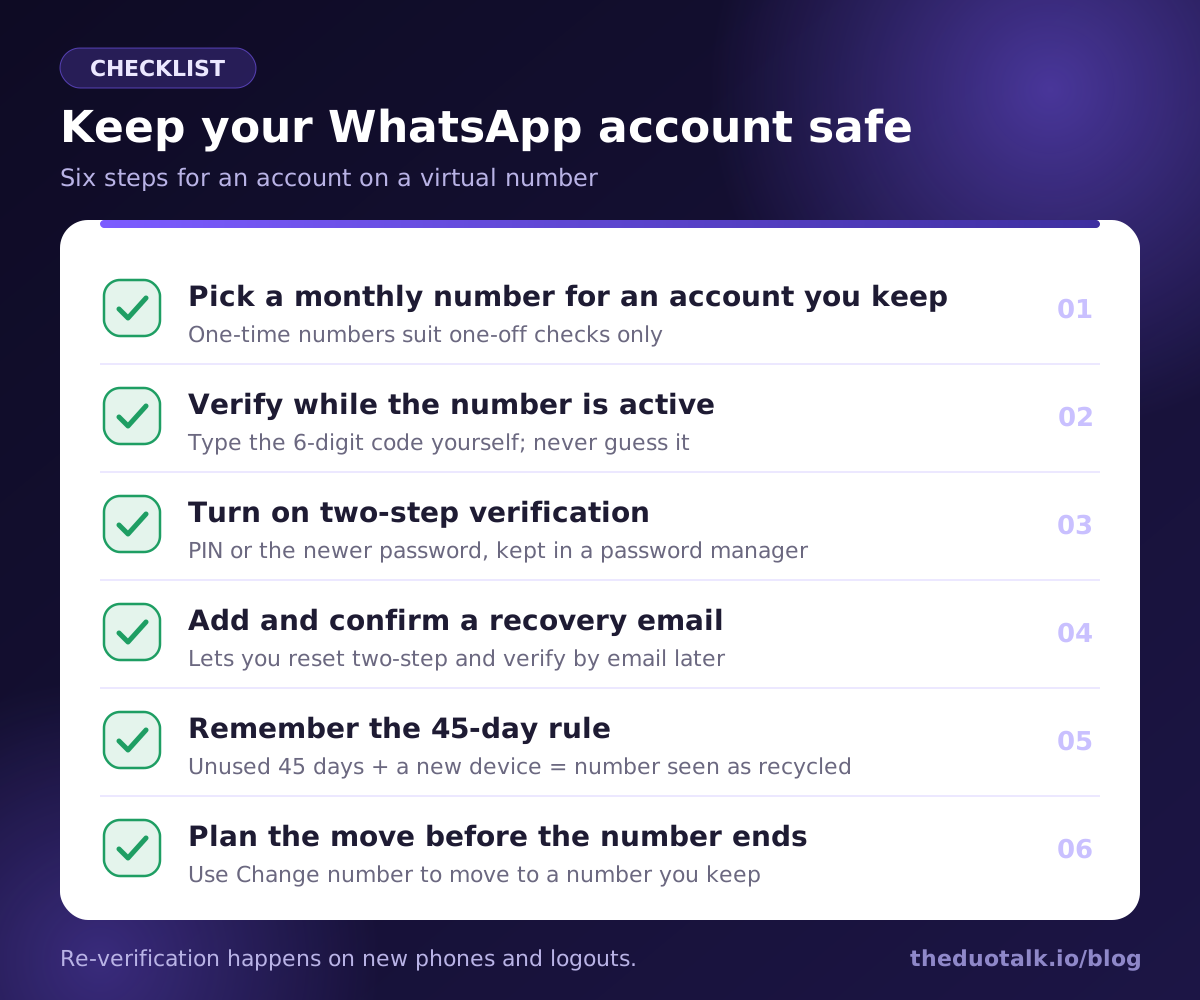
The two settings that protect a WhatsApp account on a virtual number are two-step verification and a verified email address. Turn on both right after you register; together they take about two minutes.
Turn on two-step verification
WhatsApp two-step verification adds a secret that is needed whenever someone registers your number on a new phone. For years this was a 6-digit PIN. On 25 August 2026 WhatsApp announced that it is replacing the PIN with a longer alphanumeric password (letters, numbers and special characters), rolling out gradually, so your app may show either option.
- Open WhatsApp and go to Settings, then Account, then Two-step verification.
- Tap Turn on (or Create PIN / Create password, depending on your version).
- Enter a PIN or password that is not your birthday, phone number or any code you use elsewhere. Save it in a password manager.
- When asked, add an email address and confirm it. This email lets you reset the PIN or password if you forget it.
- WhatsApp will occasionally ask you to enter the PIN or password to help you remember it. Do not skip these prompts.
If you forget the PIN or password and did not add an email, WhatsApp's recovery guidance says you have to wait 7 days before you can try again. On a number you will soon lose, that wait can be fatal for the account.
Add a verified email to the account
Separately from two-step verification, WhatsApp lets you add an email address to the account under Settings, then Account, then Email address. WhatsApp sends a code to confirm it. According to WhatsApp's Help Center, if you need to re-register your number and cannot receive an SMS or call, you can choose Email under "Choose how to verify" to get the code, but only if you added the email beforehand. It is the closest thing WhatsApp has to a backup for the number itself.
Add a passkey
WhatsApp also supports passkeys (Settings, Account, Passkeys), which let you confirm sign-ins with your fingerprint, face or screen lock. Since the August 2026 update you can add more than one passkey. Passkeys protect sign-ins and backups, but a brand-new registration still needs a code sent to the phone number.
| Setting | Where to find it | What it protects against |
|---|---|---|
| Two-step verification (PIN or password) | Settings, Account, Two-step verification | Someone else registering your number on their phone |
| Email address | Settings, Account, Email address | Losing the SMS route when you re-register |
| Passkey | Settings, Account, Passkeys | Password and code phishing at sign-in |
| Encrypted backup | Settings, Chats, Chat backup | Losing chat history when you change phones |
What happens when WhatsApp asks to verify again
When WhatsApp asks you to verify again, it sends a new 6-digit code to the registered number, and you need to read it. If you can, you are back in within minutes; if you cannot, you are locked out until you can, and the account may eventually pass to whoever holds the number next.
The 45-day recycling rule
Phone carriers reassign numbers that are no longer used, and WhatsApp has a rule for this. Its Help Center says it takes it as a sign that a number has been recycled if an account is unused for 45 days and then becomes newly activated on a different mobile device. In that case, the old account's data such as the profile photo and About text is removed and the new holder starts fresh.
What this means for you:
- Keep the account active. Open WhatsApp regularly on your main phone. An account in daily use is not treated as abandoned.
- Do not let the number go while the account matters. If the number ends and someone else later registers it, they get a fresh WhatsApp account on that number, and your contacts may see a stranger in your old chat.
- Two-step verification slows a takeover. Anyone registering your number on a new phone also needs your PIN or password; WhatsApp's recovery guidance notes that without it they face a waiting period.
Plan the move before your number ends
If you know a number will end, move WhatsApp to a number you will keep while you can still use the account. WhatsApp's Change number feature (Settings, Account, Change number) moves your profile, settings, groups and chats to the new number and deletes the account on the old number. WhatsApp warns that the change cannot be undone, so check the new number carefully. Before you switch:
- Make a fresh chat backup.
- Confirm the new number can receive WhatsApp's code.
- Choose whether to notify your contacts or only your chats.
- After switching, make a new backup, because backups made with the old number cannot be used to restore data.
On DuoTalk, the number lifecycle page explains what happens to a number during access, when access ends and afterwards, and how to protect accounts that rely on it. Read it before you register an account you care about.
Common WhatsApp verification errors and what they mean
Most WhatsApp verification errors come from three causes: the number type is unsupported, too many attempts were made, or the code was delayed or filtered. The exact wording varies by app version and language, but these are the messages people see most.
| What you see | What it usually means | What to do |
|---|---|---|
| "Not a valid number" or the number is rejected straight away | Wrong country selected, an extra leading zero, or a missing digit | Pick the country from the list, then enter the number without the country code or the trunk zero |
| Registration refused for this number | The number type is not supported (for example VoIP or toll-free) or the number is flagged | Use a different, supported number; repeating the attempt will not help |
| A countdown such as "try again in 1 hour" or longer | Too many code requests or wrong guesses | Wait the full time; every new request can extend the wait |
| No code after the timer | Delay, carrier filtering, or a number that cannot receive this sender | Wait up to 10 minutes, request once more, then change number |
| "Call me" fails | The number cannot receive voice calls | Use SMS; many virtual numbers receive texts only |
| You are asked for a two-step PIN you never set | The number was used for WhatsApp before and the previous holder turned on two-step verification | WhatsApp makes you wait (its recovery guidance says 7 days) before a reset; choose another number instead |
| "This account is not allowed to use WhatsApp" or a ban notice | The account or number was banned for breaking the terms | Use the in-app review request; do not try to evade the ban |
| "Your phone number is no longer registered with WhatsApp on this phone" | Someone (or you, on another phone) registered the same number elsewhere | Re-register with the code; set two-step verification so it cannot happen again |
A worked example
Imagine someone who sells handmade jewellery online and wants a WhatsApp Business account separate from family chats. They choose a monthly number in their country, install WhatsApp Business, enter the number and type the code from the inbox. Before posting a first listing they turn on two-step verification, add an email, make a backup and set a reminder a few days before the rental ends. Three weeks later they change phones: WhatsApp asks for a new code, it arrives on the same number, and the chats restore from the backup. On a one-hour number, that phone change would have locked them out of their own business account.
Questions people also ask
Can I use a virtual number for WhatsApp?
Yes, if WhatsApp accepts the number type and you can read the 6-digit code. WhatsApp's Help Center says VoIP, toll-free, premium-rate, UAN, shared-cost and personal numbers cannot be registered, and landlines work only in WhatsApp Business. A virtual number registered as mobile can work. Because WhatsApp asks for a new code when you change phones or get logged out, use a number you can keep for any account you want long term.
Why is WhatsApp not sending my verification code?
The usual causes are a wrong country code or extra leading zero, an unsupported number type such as VoIP, too many requests, or a delay on the network. WhatsApp says to wait for the timer to finish, which can take up to 10 minutes, then request again or use "Call me" if your number takes calls. Do not guess codes. If one resend fails, switch to a different number.
Can I use WhatsApp with a number I no longer have?
Yes, while you stay logged in on the same phone: WhatsApp does not check the number every day. The problem starts when you change phones, reinstall or get logged out, because WhatsApp sends the new code to the old number. If you added an email before, you may be able to verify by email. The safer move is to use Change number while you still have access.
What happens if someone else gets my old WhatsApp number?
If your account is unused for 45 days and the new holder activates WhatsApp on a different phone, WhatsApp treats the number as recycled and removes your old profile data. If the account was still active, the new holder can register the number and log you out, unless you set two-step verification, which forces a waiting period. Move your account with Change number before giving up a number.
Can I have two WhatsApp accounts on one phone?
Yes. Open WhatsApp Settings, tap the arrow next to your name and choose Add account, then register the second number with its own code. You can also install the WhatsApp Business app for the second number. Each account needs a different phone number, and each keeps separate privacy and notification settings. Linked devices are different: they show the same account on more phones or computers.
How do I turn on WhatsApp two-step verification?
Go to Settings, then Account, then Two-step verification, and tap Turn on. Depending on your app version, you create a 6-digit PIN or, since WhatsApp's August 2026 update, a longer password. Add and confirm an email address when asked, so you can reset it if you forget. Without an email, a forgotten PIN means waiting 7 days before you can try again.
Sources
- WhatsApp Help Center: How to register your phone number
- WhatsApp Help Center: How to verify your phone number
- WhatsApp Help Center: Can't complete registration
- WhatsApp Help Center: About seeing your phone number already in WhatsApp (recycled numbers, 45 days)
- WhatsApp Help Center: About two-step verification
- WhatsApp Help Center: Add your email to your WhatsApp account
- WhatsApp Help Center: How to recover a compromised account
- WhatsApp Help Center: About changing phone numbers
- WhatsApp Blog: Multiple accounts coming to WhatsApp
- WhatsApp Blog: One WhatsApp account, now across multiple phones
- WhatsApp Terms of Service
- 9to5Google: WhatsApp two-step verification is ditching six-digit PINs for full passwords (25 August 2026)
Last reviewed: October 2026