Receive OTP Without SIM Card: Step-by-Step Guide
Receive OTP without SIM card: five ways that work step by step, from a virtual number and eSIM to Wi-Fi calling, linked devices and non-SMS codes.
By the DuoTalk team · Published 2026-11-10 · Updated 2026-11-11
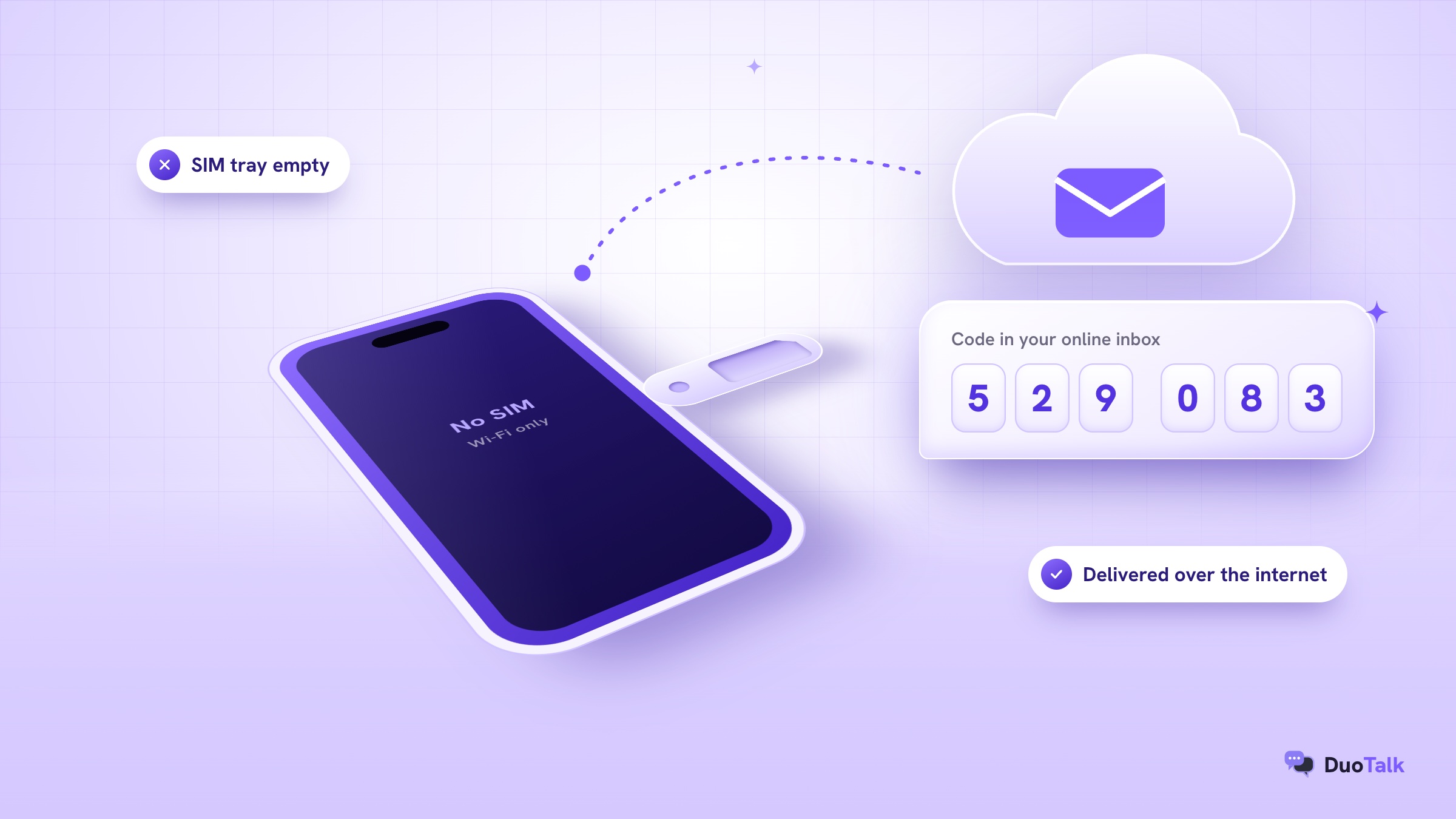
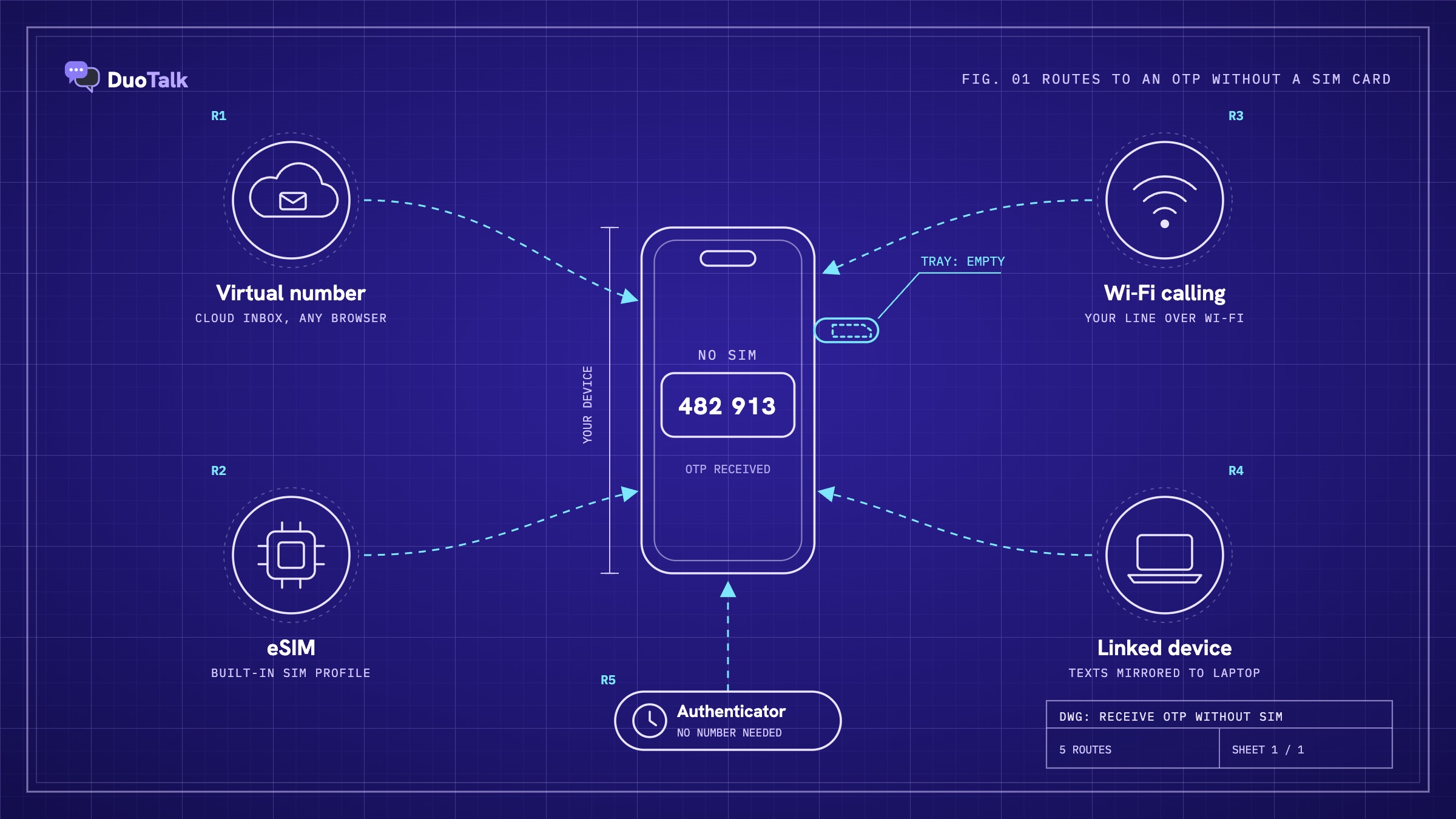
Need to receive OTP without SIM card access? You can receive an OTP without a SIM card in five ways: a virtual phone number that shows texts in an online inbox, an eSIM that replaces the plastic card, Wi-Fi calling on a line you already own, a linked device such as a laptop that mirrors your texts, or a code that never uses SMS at all (an authenticator app, email or backup codes). Which one works depends on why you have no SIM: you lost it, you are travelling, you are on a tablet or laptop, or you simply do not want to give out your real number. This guide walks through each method step by step, shows how the code actually reaches a number with no SIM behind it, and explains what fails and why.
The short answer: To receive an OTP without a SIM card, use a virtual phone number and read the code in a private online inbox, or move your own number to an eSIM, or turn on Wi-Fi calling and message forwarding while your line is active. If the service allows it, switch to an authenticator app, email code or backup code so you need no phone number at all. A code arriving never guarantees a service will accept a virtual number.
Can you receive an OTP without a SIM card?
Yes. An OTP sent by SMS goes to a phone number, not to a piece of plastic, so you only need some place where that number is "live": a cloud inbox, an eSIM profile, a Wi-Fi calling session or a linked device. Codes that are not sent by SMS (authenticator apps, email, passkey prompts) need no number at all.
People often mix up the SIM and the number. The SIM (or eSIM) is the credential that lets your phone use a subscription. The number is an address in the global numbering plan defined by ITU-T E.164: a country code such as +1 or +44 plus the national number, at most 15 digits. An app sends your one-time password to the address, and the network works out where that address is reachable right now.
That is why "no SIM" can mean very different things:
- You lost or damaged your SIM. Your number still exists at your carrier; get it reissued, and use a non-SMS way in meanwhile.
- Your device has no SIM (a Wi-Fi-only tablet, a laptop). Mirror texts from a phone that has the line, or use a number that lives online.
- You do not want to use your personal SIM for this sign-up. A private virtual number is built for this privacy case.
- You are abroad with no signal or roaming. Wi-Fi calling, an eSIM or a non-SMS method usually solves it.
If you are new to the term, our explainer on what OTP means covers how one-time passwords work and how long they last. This guide is about the delivery problem: getting the code when there is no SIM in the picture.
The five no-SIM methods at a glance
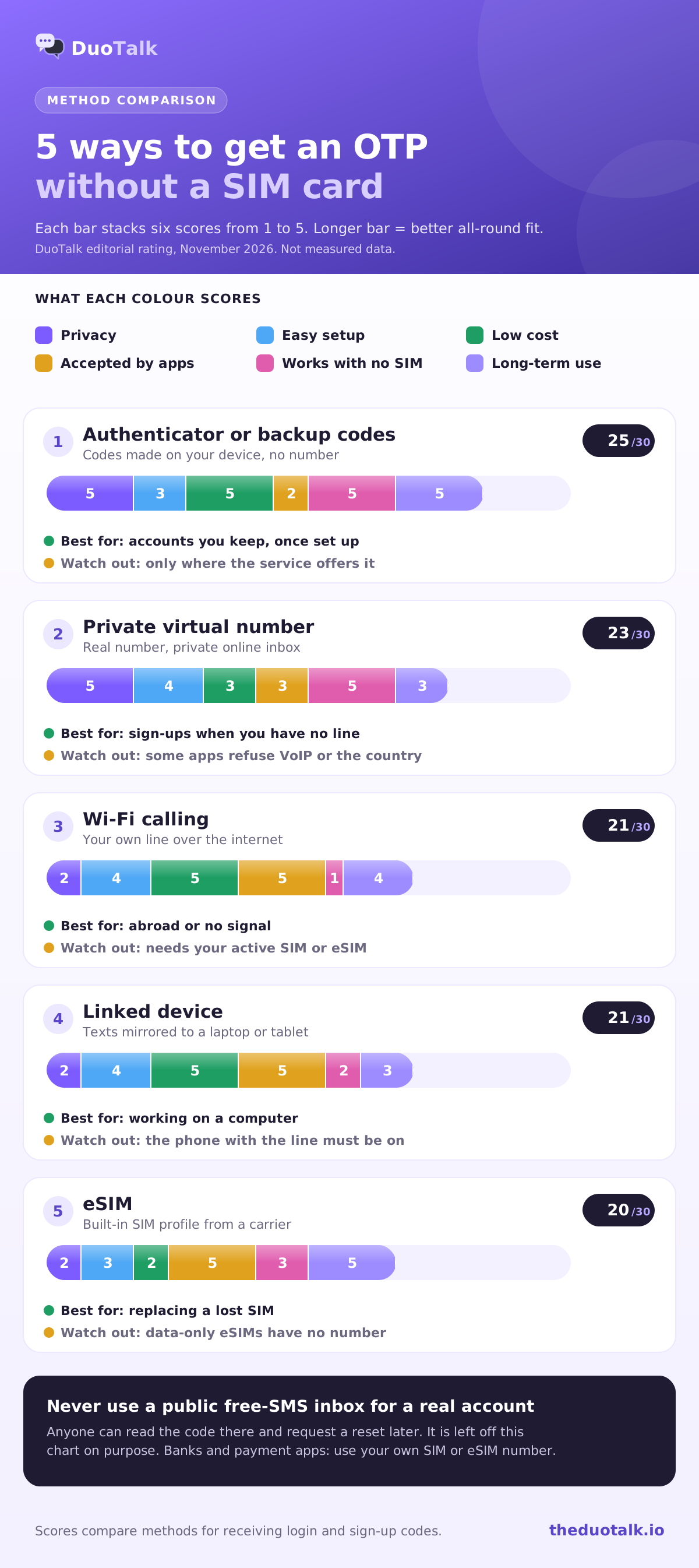
Each method solves a different version of the problem. The table shows what you need, which kind of code it receives and the main reason it fails.
| Method | What you need | Receives | Typical cost | Main reason it fails |
|---|---|---|---|---|
| Virtual phone number | A browser or app, a paid private number | SMS codes | Pay per number or per month | Service refuses the line type or country |
| eSIM | An eSIM-capable phone and a carrier plan | SMS and calls on a real mobile line | Carrier plan price | Data-only eSIM has no number to text |
| Wi-Fi calling | Your active line, carrier support, Wi-Fi | SMS and calls over Wi-Fi | Usually included in your plan | Carrier does not carry texts over Wi-Fi, or line is suspended |
| Linked device (forwarding, web messages) | A phone that still has the line, plus a laptop or tablet | Copies of SMS | Free | The phone with the line is off or out of reach |
| Non-SMS codes (authenticator, email, backup codes, voice call) | The service must offer it, set up in advance | App codes, email codes, one-use codes | Free | Not set up before you lost access |
How an SMS OTP reaches a number with no SIM
An SMS code travels from the app to an SMS gateway, then to the carrier that owns the destination number, and that carrier delivers it to wherever the number is registered right now: a SIM in a handset, an eSIM, a Wi-Fi calling session, or a server that powers a virtual number inbox. The sender never sees which one.
The route in detail explains nearly every failure later in this guide:
- The app creates the code. The service generates a random code (usually 4 to 8 digits) and stores it with a short expiry, often 5 to 10 minutes. Wording and limits vary by service.
- The app hands it to an SMS gateway. Most companies do not run their own phone network. They pass the message to a messaging provider, sometimes called an aggregator, along with the destination number.
- The gateway checks the number. Before sending, many services run a lookup that returns the country, the carrier and the line type (mobile, landline, fixed VoIP or non-fixed VoIP). This is where a service may decide not to send to your number at all.
- The message reaches the home carrier. The carrier that owns the number range receives the message and looks up where that subscriber is registered.
- The carrier delivers it. If the subscriber is a phone with a SIM or eSIM on the mobile network, the text goes over the radio network. If the phone is on Wi-Fi calling, it goes over the internet to the phone through the carrier's IMS core. If the number belongs to a virtual number platform, the carrier hands it to that platform, which shows it in your online inbox.
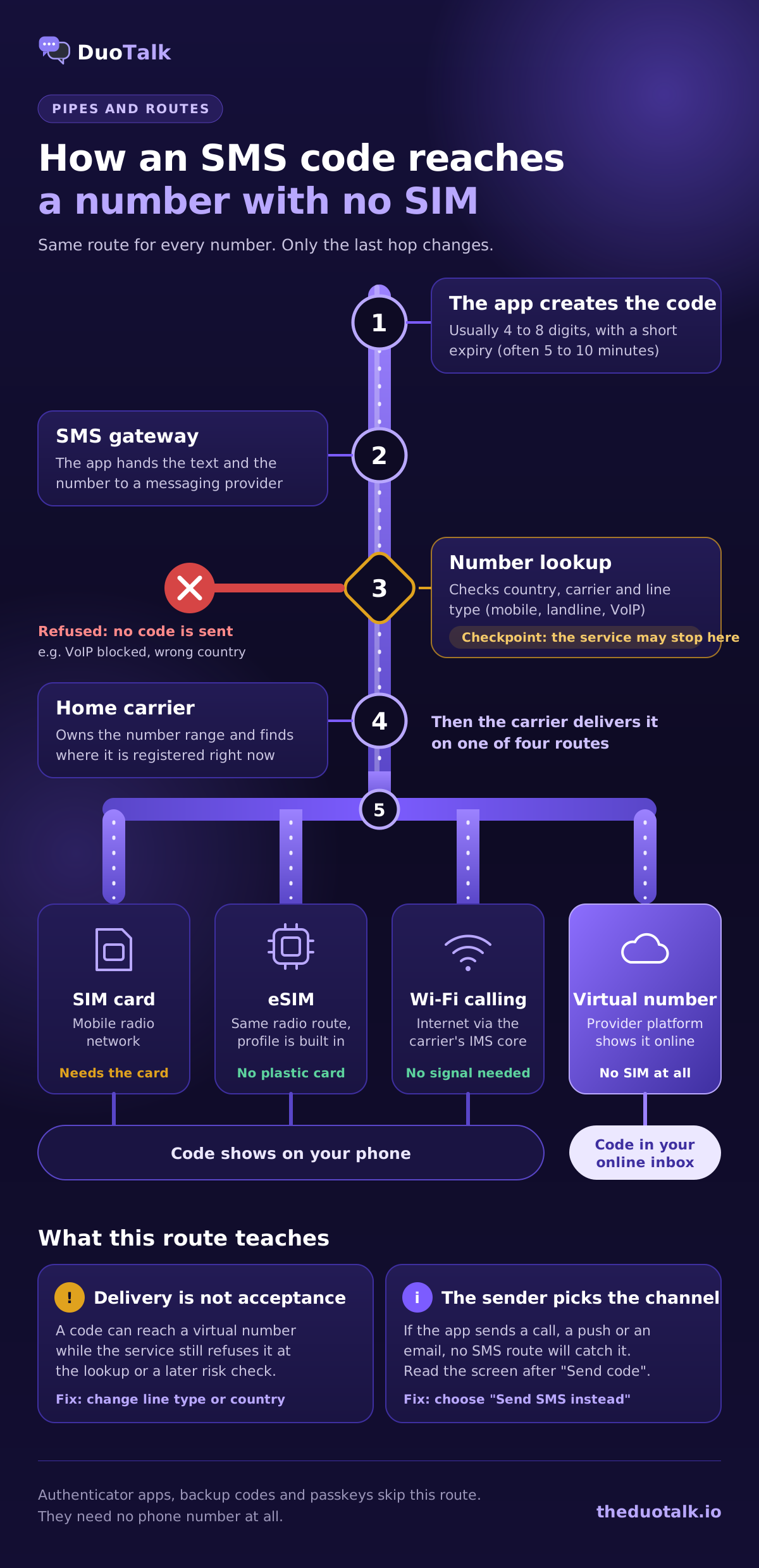
Two facts follow. Delivery and acceptance are separate: a code can reach a virtual number while the service still refuses the number at step 3 or in a later risk check. And the sender decides the channel: if the app sends the code by call, push or email, no SMS setup will catch it, so read the screen after you tap "Send code".
For a deeper look at the gateway and carrier hops, see our explainer on how temporary SMS numbers work, which follows a message hop by hop.
Method 1: Receive OTP online with a virtual phone number
A virtual phone number is a real, dialable number hosted by a provider instead of on a SIM in your hand; texts sent to it appear in a web or app inbox. It is the only method that works when you have no line of your own at all, and the best choice when you want to receive OTP online privately without giving out your personal number.
There are two kinds you will meet:
- Public "free SMS" inboxes. Anyone who opens the page can read every message, including your code. Anyone can also request a password reset to the same number later. Use them only for throwaway tests that hold no personal data.
- Private numbers. The number is assigned to your account for a set time and only you see its messages. These are paid, either per sign-up (short-term) or by the month.
A private number is the honest answer to "is there an online number for SMS code that is actually safe?" If you want the full privacy reasoning, our guide to receiving verification codes online without sharing your number covers breaches, spam and SIM-swap risk in depth.
Steps: get an OTP on a virtual number
The process is the same with any private provider:
- Decide how long you need the account: a temporary phone number for a one-off sign-up, a monthly number for an account you will log in to again.
- Pick the service and a country it supports. Matching the country to where you use the account avoids many "unusual activity" checks.
- Check live stock and price before paying. On DuoTalk these are shown per service and country on the Numbers page.
- Buy the number and enter it in the app with the country code, for example +1 415 555 0142 (fictional). Forms that use a country dropdown want the national number without the leading 0: UK 07700 900123 becomes +44 7700 900123.
- Tap "Send code" once and watch your inbox. Codes usually arrive within seconds on tested routes; a second code, if sent, lands in the same inbox.
Short-term or monthly: which to choose
Short-term numbers suit one-off sign-ups; monthly numbers suit anything you will log in to again. Here is how the two compare on DuoTalk (monthly numbers are offered in some countries only):
| Short-term number | Monthly number | |
|---|---|---|
| How long it is yours | 60 minutes, plus 7 minutes after the first code | 30 days |
| Which senders it receives from | Only the service chosen at purchase | Any service |
| Renewal | Not renewable | Manual: renew from your numbers list before the 30 days end; nothing renews automatically |
| If no code arrives | Extend once for free (another hour), then report for a refund to balance | Refund on request within 48 hours if it never receives an SMS |
| Best for | Trying an app, a one-time sign-up, testing | Messengers, email, accounts you need to recover later |
Our comparison of one-time vs monthly virtual numbers works through examples by account type.
What fails with virtual numbers, and why
Most failures happen at the lookup step, before any code is sent:
- Line type refused. Many messengers and payment apps block numbers that lookups label as VoIP. WhatsApp's help centre says it does not accept VoIP, toll-free, premium-rate or landline numbers (landlines only in the WhatsApp Business app). Mobile-type numbers are accepted by more services.
- Country mismatch. Some services only send SMS to certain countries, or expect your number to match your location or app store region.
- Number history. A number that was used before for the same service may already be tied to another account. Private numbers from a provider that limits reuse reduce this, but no provider can promise acceptance.
- Rate limits. Pressing "Resend" five times can put a cooldown on the number or the device. Wait for the timer.
- The code went elsewhere. If you already have an account, the code may go to your logged-in device or email instead of SMS.
None of these mean the number "cannot receive SMS"; the service chose not to send, or chose another channel.
Method 2: Use an eSIM instead of a physical SIM
An eSIM is a SIM profile downloaded into a chip built into the phone, so there is no card to insert. GSMA, the mobile industry body that writes the eSIM specification, describes it as remote SIM provisioning: the carrier sends your subscription to the phone over the internet. Once active, an eSIM line receives SMS codes exactly like a plastic SIM.
Technically this is still a SIM, just not a physical one. If you want to own a line with no plastic card, our guide to a virtual phone number without a SIM card compares eSIM, app and virtual numbers on cost and setup. An eSIM is the right method when:
- You lost your SIM card and your carrier supports eSIM: ask for your existing number on an eSIM and your codes come back without waiting for a new card in the post.
- Your phone has no free SIM slot but supports a second line on eSIM.
- You are travelling and want a local line alongside your home number.
Steps: move your number or add a line on eSIM
- Check eSIM support. On iPhone, open Settings, then Cellular (Mobile in some regions) and look for "Add eSIM". On Android, look under Settings, Network and internet, SIMs; names vary by maker.
- Ask your carrier (or its app) to reissue your number on an eSIM. Expect identity checks: since the FCC's 2023 SIM swap rules, US carriers must use secure authentication before moving a number to a new SIM.
- Install the profile by QR code, carrier link or app, or quick transfer from your old phone. Apple's eSIM setup guide lists every iPhone option.
- Turn the line on, send a test text, then request a fresh OTP; older codes will have expired.
The data-only eSIM trap
Many travel eSIMs are data-only. They give you internet but no phone number, so nothing can be texted to them. If a travel eSIM listing does not show a phone number, assume it cannot receive OTPs. Keep your home line active alongside it (dual SIM) and receive codes over Wi-Fi calling, or use a virtual number or a non-SMS method while you are away.
Method 3: Wi-Fi calling and texts on another device
If you own an active line but have no signal, or the SIM is in another phone, you can often get the code over Wi-Fi or on a linked device. These methods do not create a number; they make yours reachable in more places.
Wi-Fi calling (no mobile signal)
Wi-Fi calling lets your phone register your line over any internet connection, so calls and, on many carriers, SMS arrive without mobile signal. It needs your SIM or eSIM to be installed and active: the phone uses it to prove the line is yours, even over Wi-Fi.
- On iPhone: Settings, then Cellular (or Mobile), choose your line if you have two, then turn on Wi-Fi Calling. Apple notes the feature is not offered by every carrier or in every country.
- On Android: search Settings for "Wi-Fi calling" (it is often under Network and internet, Calls, or SIMs) and turn it on for your line.
- Connect to Wi-Fi and wait until the status bar shows a Wi-Fi calling label or icon.
- Send yourself a test SMS from another number before requesting the OTP.
What fails: some carriers carry calls but not texts over Wi-Fi, and short-code texts (the 5 or 6 digit senders used for many codes in the US and elsewhere) can behave differently from person-to-person messages. If the test text arrives but the code does not, choose the service's voice call option, which usually comes through over Wi-Fi calling.
Texts on a laptop or tablet (message forwarding)
If the phone with your line is nearby and switched on, you can read its SMS on another device. This helps when the SIM phone is a spare in a drawer and you work on a laptop.
- iPhone to iPad or Mac: turn on Text Message Forwarding in Settings, Apps, Messages (or use Messages in iCloud). Both devices must use the same Apple Account. SMS codes then appear on the Mac or iPad too.
- Android to a computer: open messages.google.com, choose Messages for web, and scan the QR code from the Messages app (profile picture, Device pairing, QR code scanner). Your texts, including codes, show in the browser.
What fails: the phone that holds the line must be on, connected and receiving. Forwarding copies messages; it does not receive them on its own. If you lost the SIM phone, forwarding cannot help.
If you lost your SIM
Ask your carrier to suspend the line and reissue the same number on a new SIM or eSIM; this also protects you if someone else has the card. Until it is back, use the backup routes in Method 4, and keep bank, payment and government accounts on your own number rather than moving them in a panic.
Method 4: Skip SMS with authenticator apps, email and backup codes
The most reliable way to receive a login code without a SIM is to not use SMS at all. Many services let you choose an authenticator app, email codes, backup codes, a passkey or a voice call instead. The catch: most of these must be set up while you still have access.
| Non-SMS method | How it works | Needs a number? | Good for |
|---|---|---|---|
| Authenticator app | Generates a new 6-digit code every 30 seconds from a shared secret (TOTP, IETF RFC 6238), works offline | No | Email, social, developer and shopping accounts |
| Backup codes | A list of one-use codes you save in advance; Google's are 8 digits | No | Getting in when every other method is gone |
| Email code | Code sent to your inbox | No | Accounts that offer it, re-registration on some messengers |
| Passkey or security key | Your device or key signs the login; no code to type | No | Major platforms that support passkeys |
| Voice call code | An automated call reads the code | Yes, but calls can arrive over Wi-Fi calling | When SMS is delayed or blocked |
NIST's digital identity guidelines (SP 800-63B) treat SMS and voice codes as a restricted authenticator because they depend on the phone network, and they point toward app-based and phishing-resistant options. For you, that simply means an authenticator app is both safer than SMS and independent of any SIM.
Steps: switch an account to an authenticator app
- Install an authenticator app on a device you will keep, or use a password manager that supports one-time codes.
- Open the account's security settings, find 2-step verification and choose "Authenticator app".
- Scan the QR code and type the current 6-digit code to confirm.
- Save the backup codes offline, printed or in your password manager.
- Keep SMS as a fallback only if you control the number long term.
To use a backup code, enter your password, choose "Try another way" on the verification screen (wording varies) and type one unused code. Each works once, and Google's help pages note that generating a new list cancels the old one.
Ask for a voice call
If SMS fails and the app offers a call, take it. WhatsApp, for example, shows a "Call me" option once the SMS timer runs out, and an automated voice reads a 6-digit code. Calls reach a phone on Wi-Fi calling, and for re-registering an existing WhatsApp account the app can also send the code by email if you added one earlier. Note that most receive-only virtual numbers, including DuoTalk's, take SMS only and cannot answer calls.
Which method fits your situation?
Pick by the reason you have no SIM:
- Lost SIM, same number wanted back: replacement SIM or eSIM from your carrier, plus backup codes or an authenticator app until it arrives.
- Abroad, home SIM has no signal: Wi-Fi calling on your home line; ask for a voice call if SMS does not come through.
- Laptop or tablet only, phone nearby: message forwarding or Messages for web.
- No number of your own, or you want privacy for a sign-up: a private virtual number; short-term for one-offs, monthly for accounts you keep.
- Long-term security on an important account: an authenticator app or passkey, with saved backup codes, so a lost SIM never locks you out again.
- Bank, payment or government service: your own SIM or eSIM number. Follow that service's identity rules; a virtual number is for privacy, not for skipping checks.
Three worked examples
Example 1: a new messaging app on a Wi-Fi-only tablet. You have a tablet and no phone line you want to use. The app verifies by SMS and you plan to keep the account. Choice: a monthly virtual number in a country the app supports, because the app may ask for a fresh code when you log in on another device. Add a recovery email or PIN inside the app straight away, and renew the number before the 30 days end.
Example 2: you lost your SIM on a trip. Your banking app wants an SMS code. Choice: ask your carrier for an eSIM on the same number (identity checks apply) and use the bank's own alternatives meanwhile, such as approving the login on a trusted device. Do not put a different number on the bank account.
Example 3: testing a sign-up flow once. You want to see how an online tool works before committing, and you will never log in again. Choice: a short-term private number for that one service. If no code arrives within the hour, extend once for free; if it still fails, report it and the price goes back to your balance.
Troubleshooting: when the OTP still does not arrive
Most missing codes have one of a few causes. Find the symptom you see on screen and apply the fix.
| Symptom | Likely cause | Fix |
|---|---|---|
| App says "This number can't be used" (wording varies) before sending | Line type or country refused at lookup | Try a mobile-type number in another supported country, or a monthly number |
| App says code sent, nothing arrives on the virtual number | Delay at the gateway, or sender blocks the route | Wait for the timer, resend once, then extend or switch number |
| Code arrives on your other device, not by SMS | You already have an account; the service prefers in-app codes | Look for "Send SMS instead" or "Try another way" |
| Test text arrives over Wi-Fi calling, code does not | Carrier does not pass short-code SMS over Wi-Fi | Choose the voice call option, or try again with mobile signal |
| "Too many attempts" or a long cooldown | Rate limit after repeated requests | Stop requesting; wait the stated time (often hours) |
| Code arrives but "invalid" or "expired" | Old code used after a resend, or typed too late | Use only the newest code, within its window |
| Forwarded texts stopped | The phone with the line is off, offline or unpaired | Turn it on, reconnect Wi-Fi, re-pair Messages for web |
For a full checklist on phones and carriers, see our guide to verification codes not arriving. For DuoTalk numbers specifically, the help article on what to do when no SMS arrives explains the extend and report steps.
Safety rules for receiving OTPs without a SIM
A code is a key. Whatever method you use, the rules are the same: only you should be able to read it, only enter it where you requested it, and keep any account you care about on a number you control for as long as you have the account.
- Never use a public inbox for a real account. Anyone can read the code and later request a reset to the same number.
- Never share a code with someone who contacts you. Real companies do not ask for the code they just sent.
- Protect your own number from SIM swap. Ask your carrier for a SIM or port-out lock; US carriers must offer one under the FCC's 2023 rules.
- Do not let a short-term number become your recovery number. Move recovery to an email, an authenticator app or a monthly number you keep renewing.
- Respect each service's terms. A second number is for privacy, travel, testing or separating work and personal life, not for bulk accounts or getting around a ban.
How to receive an OTP without a SIM card on DuoTalk
DuoTalk (theduotalk.io) is a web app that sells private virtual phone numbers to receive SMS online in an inbox that only your account can read. It needs no SIM: you buy a number, use it in the app you are signing up for, and read the code in your browser or the installable DuoTalk app. Our how to receive SMS online guide covers every other route.
- Open the Numbers page and search for the service and country. You can see live numbers and prices before you sign up.
- Top up your balance. Top-ups are crypto only: USDT (TRC20 or BEP20), TRX, LTC, BTC or ETH, added automatically once the network confirms. No fees or tax are added at checkout.
- Choose short-term or monthly. Short-term for a one-off code from one service; monthly (30 days, some countries) for an account you keep.
- Get the number and enter it in the app with the country code.
- Read the code in your DuoTalk inbox and copy it into the app.
- If nothing arrives, extend a short-term number once for free for another hour. If it still fails, report it and the price returns to your DuoTalk balance; the help page on reporting a number and refunds explains how.
Keep three limits in mind. DuoTalk numbers receive SMS only: they cannot send messages or take calls, so pick SMS, not "Call me". A short-term number receives only from the service you chose at purchase. And a service can still refuse a number after sending a code, because acceptance is its decision.
Ready? Get a private online number for SMS codes for your service and country.
Questions people also ask
Can I receive OTP without a SIM card?
Yes. An SMS OTP goes to a phone number, not to the plastic card, so any place where the number is reachable will receive it: a virtual number's online inbox, an eSIM, or your line over Wi-Fi calling. If the service offers an authenticator app, email code or backup codes, you need no phone number at all. The one thing that does not work is a made-up number, because no one controls its inbox.
Can I receive OTP on Wi-Fi without mobile signal?
Often, yes, if your line is active and your carrier supports Wi-Fi calling with texts. Turn on Wi-Fi Calling for that line, connect to Wi-Fi and send yourself a test SMS first. Some carriers carry calls but not short-code texts over Wi-Fi, so if the code does not appear, choose the voice call option. Wi-Fi alone cannot receive SMS on a phone with no SIM or eSIM installed.
How can I get an OTP if I lost my SIM card?
Contact your carrier to suspend the line and get a replacement SIM or an eSIM on the same number; after identity checks this can take minutes for an eSIM. Meanwhile, sign in with backup codes, an authenticator app, a trusted device or a recovery email if you set them up. For banks and payment apps, use their official recovery route and do not swap in a different number.
Can a data-only eSIM receive OTP?
No, not by SMS. A data-only eSIM gives you internet access but no phone number, so there is nothing for a service to text. Check whether the plan lists a number before buying. To get codes while travelling, keep your home line active as a second line and receive texts over Wi-Fi calling, or use an authenticator app or a private virtual number instead.
Can I receive OTP on my laptop?
Yes, in two ways. If your phone with the SIM is on and nearby, mirror its texts with Text Message Forwarding on a Mac or iPad, or Google Messages for web on any computer. If you have no line at all, a private virtual number shows incoming SMS in a web inbox you open in any browser. Authenticator apps and email codes also work on a computer.
Is it safe to receive OTP online?
It is safe when the inbox is private and you keep the number for as long as the account needs it. Public free-SMS sites are not safe: every visitor can read your code and later reset your account. Use a private number, choose a monthly one for accounts you will log in to again, add an authenticator app after sign-up, and never share a code with anyone who contacts you.
Why is my OTP not coming to a virtual number?
Usually the service refused to send rather than the number failing to receive. Common causes are a line-type block on VoIP numbers, a country the service does not text, a rate limit after repeated resends, or the code going to your email or another device instead. Resend once after the timer, try a mobile-type number in another supported country, or use a monthly number for stricter apps.
Sources
- ITU-T Recommendation E.164: the international public telecommunication numbering plan
- GSMA: About eSIM and remote SIM provisioning
- Apple Support: Set up eSIM on iPhone
- Apple Support: Make a call with Wi-Fi Calling
- Apple Support: Forward text messages from your iPhone to other devices
- Google Messages Help: Check your messages on your computer
- Google Account Help: Sign in with backup codes
- WhatsApp Help Center: How to verify your phone number
- NIST SP 800-63B: Digital Identity Guidelines, Authentication
- FCC: Rules to protect consumers from SIM swap and port-out fraud (FCC 23-95)
Last reviewed: November 2026